How to Manage Restaurant Reservations
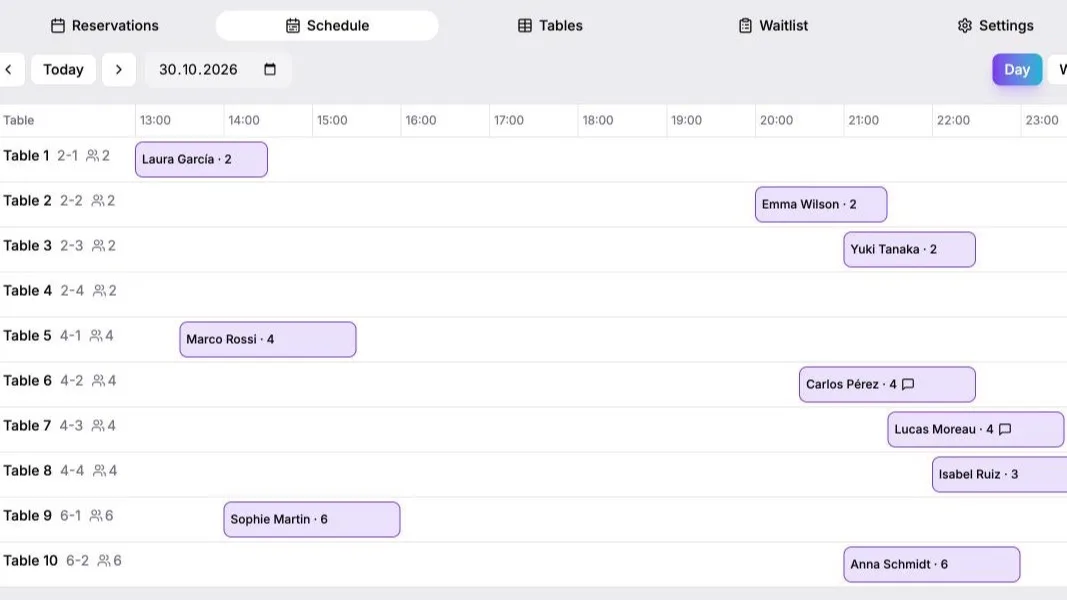
Menuvoly now shows all your reservations on a table schedule. This guide walks through a real evening: where to look, how to change a booking and how to tell guests how long their table is theirs.
See the whole day at a glance
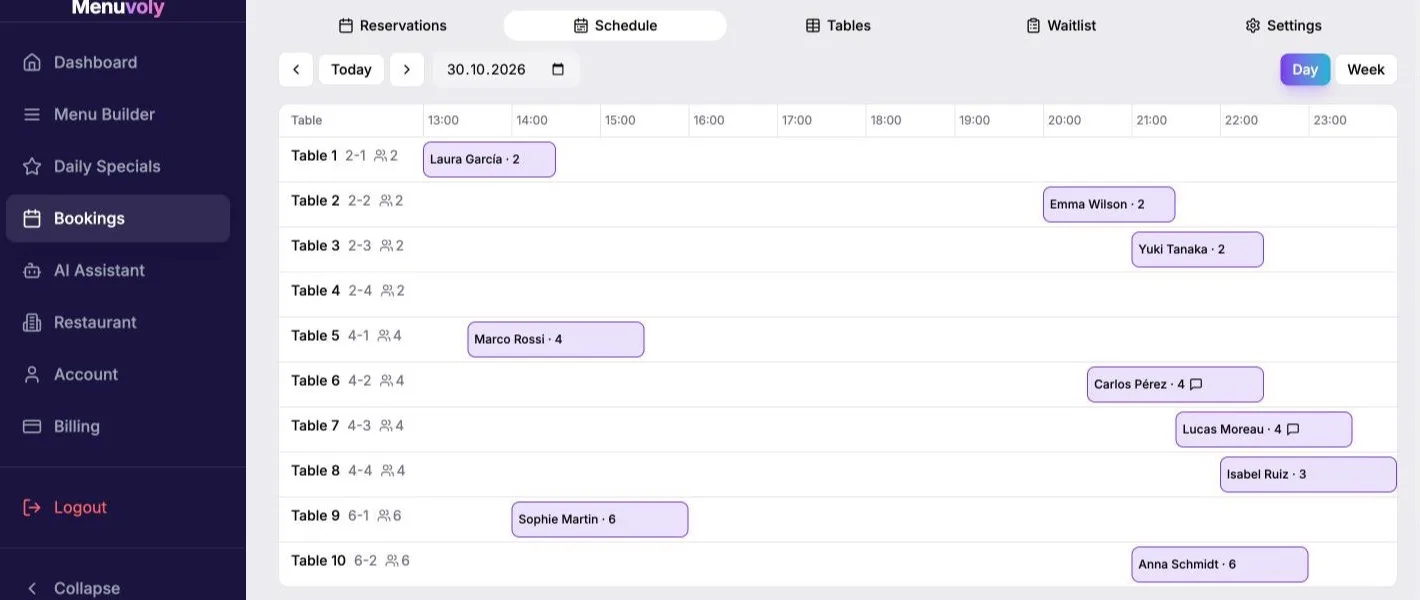
Open Bookings → Schedule. Every table is a row and every reservation is a block with the guest name and party size. A speech bubble on a block means the guest left a comment.
Use the arrows or Today to change the date.
Plan the week ahead
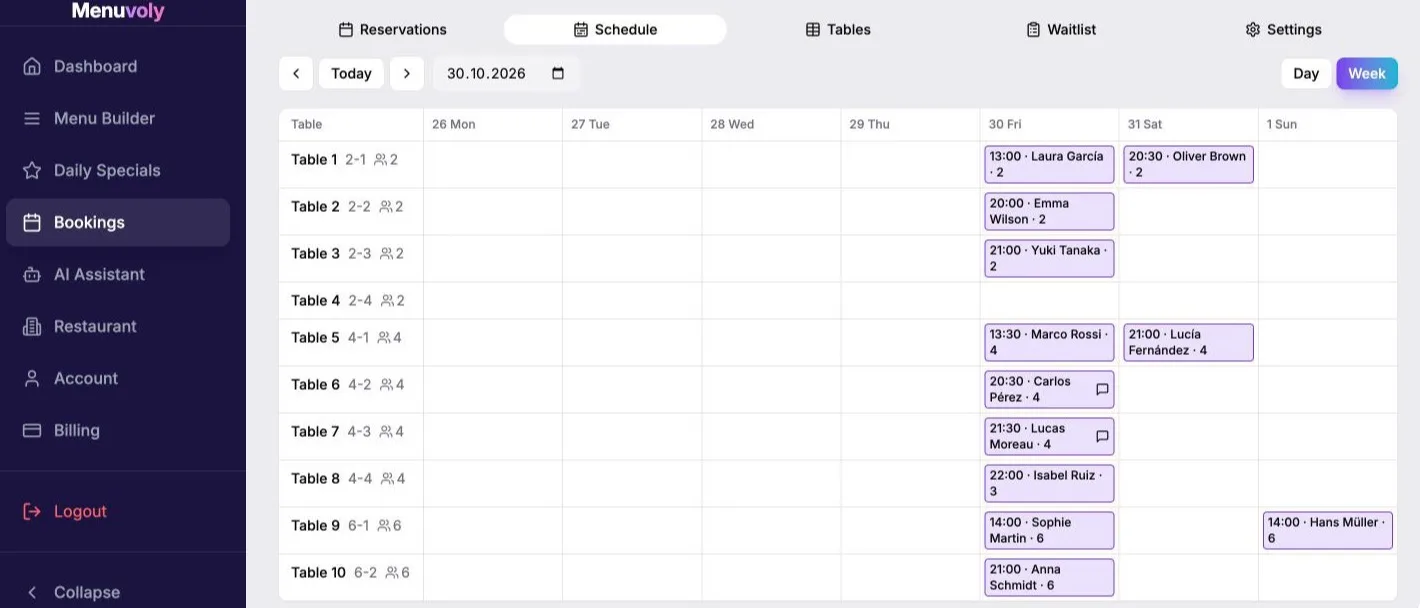
Switch to Week to see seven days side by side. It helps to spot busy evenings and free tables for large groups before the day comes.
Open a reservation
Click any block to open the reservation card: time, number of guests, phone and the Guest comment highlighted so it is not missed — a birthday cake, a high chair or a request for more time.
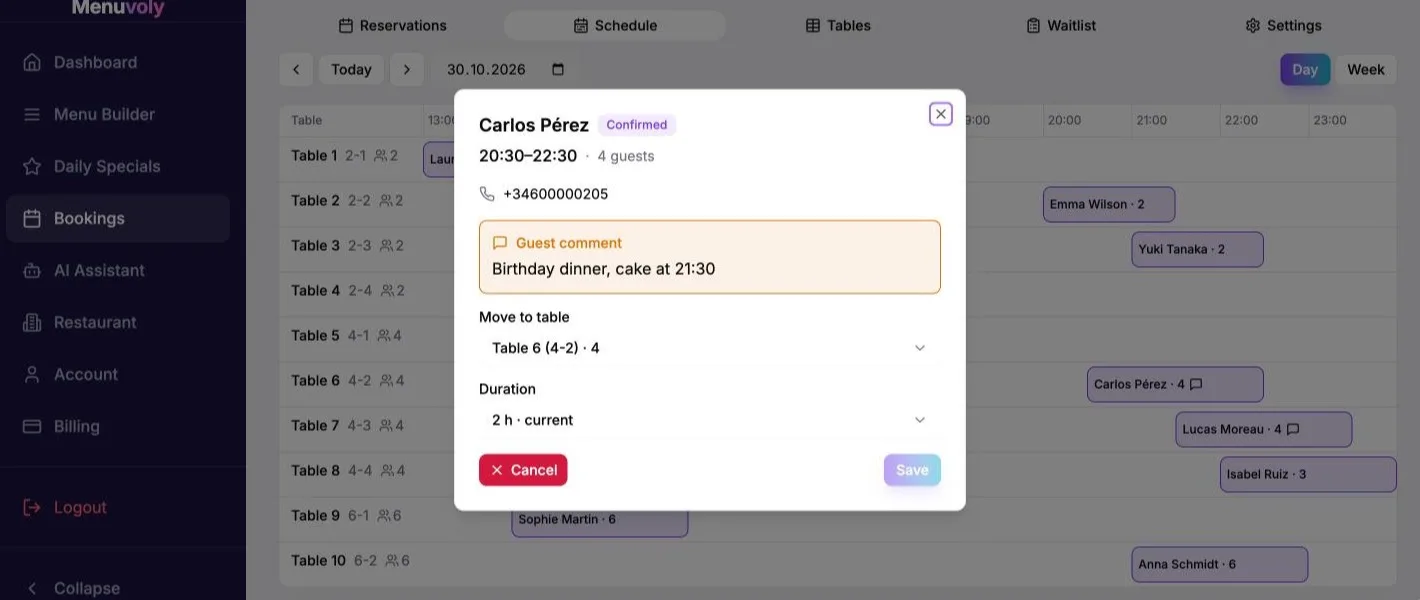
Move a guest to another table
In Move to table you see every table. Tables that are too small for the party are greyed out, and if a table is booked later you see until when it is free. Pick a table and press Save.
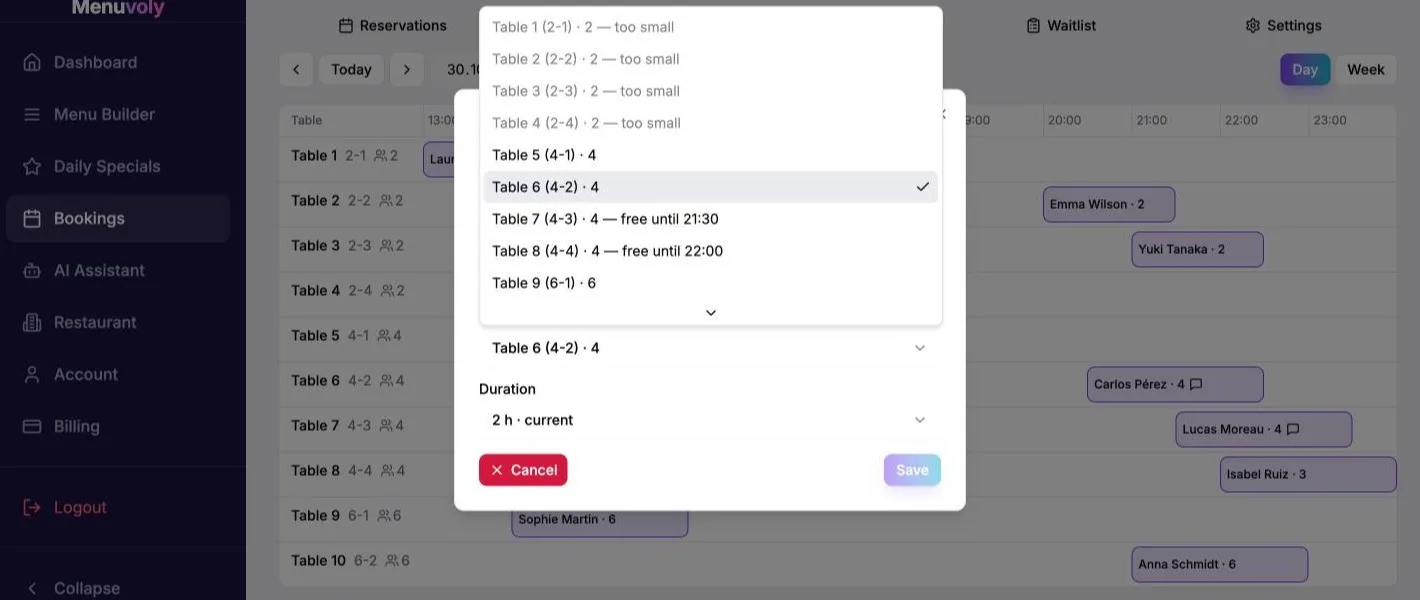
Extend or shorten a booking
Guests asked for more time? Open Duration and choose a new length in 15-minute steps. The current length is marked, so you always know what you are changing.
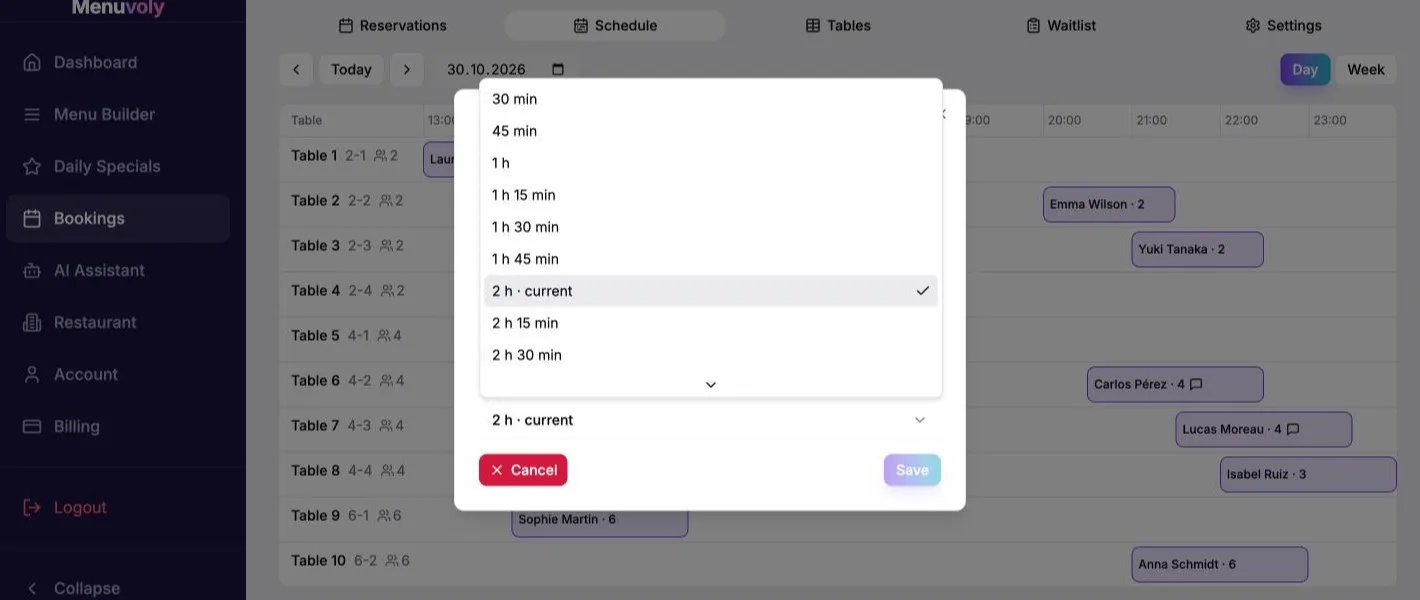
Set how long a table is held
In Bookings → Settings, Maximum booking time is how long a table is held for one reservation. By default it is 2 hours; you can set anything from 30 minutes to 8 hours.
With Booking time by party size you can give small parties less time — for example 90 minutes for up to 2 guests. Larger parties get the maximum booking time.
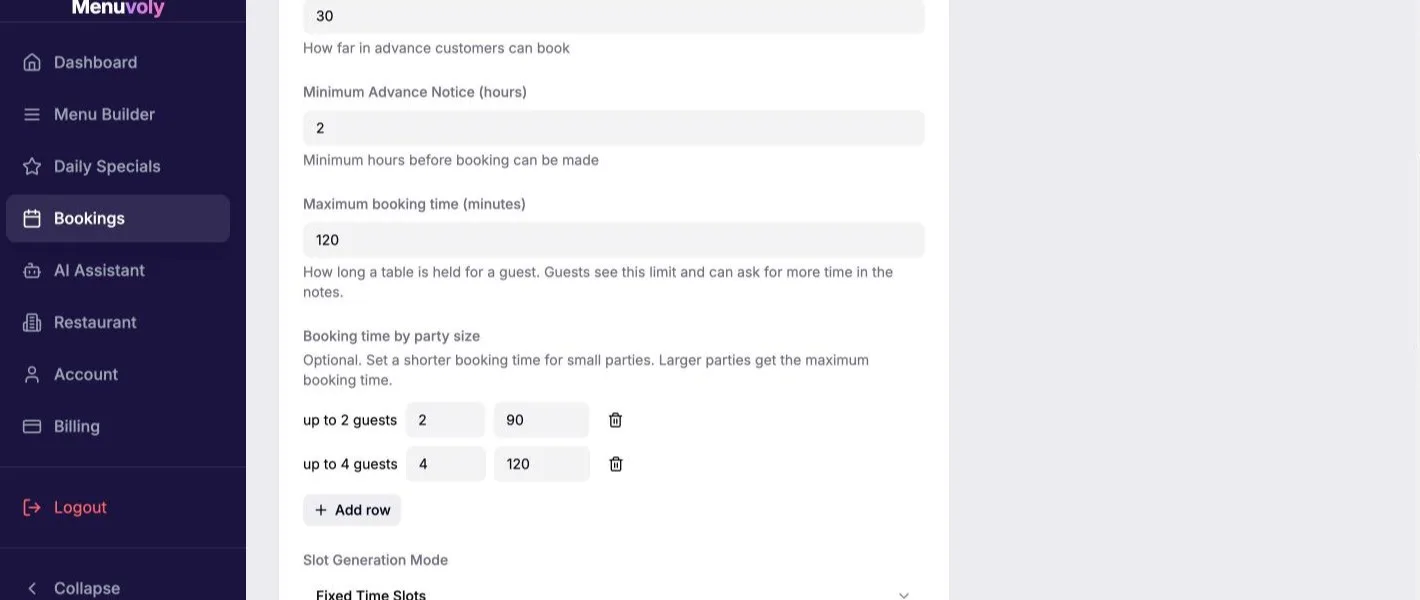
What your guests see
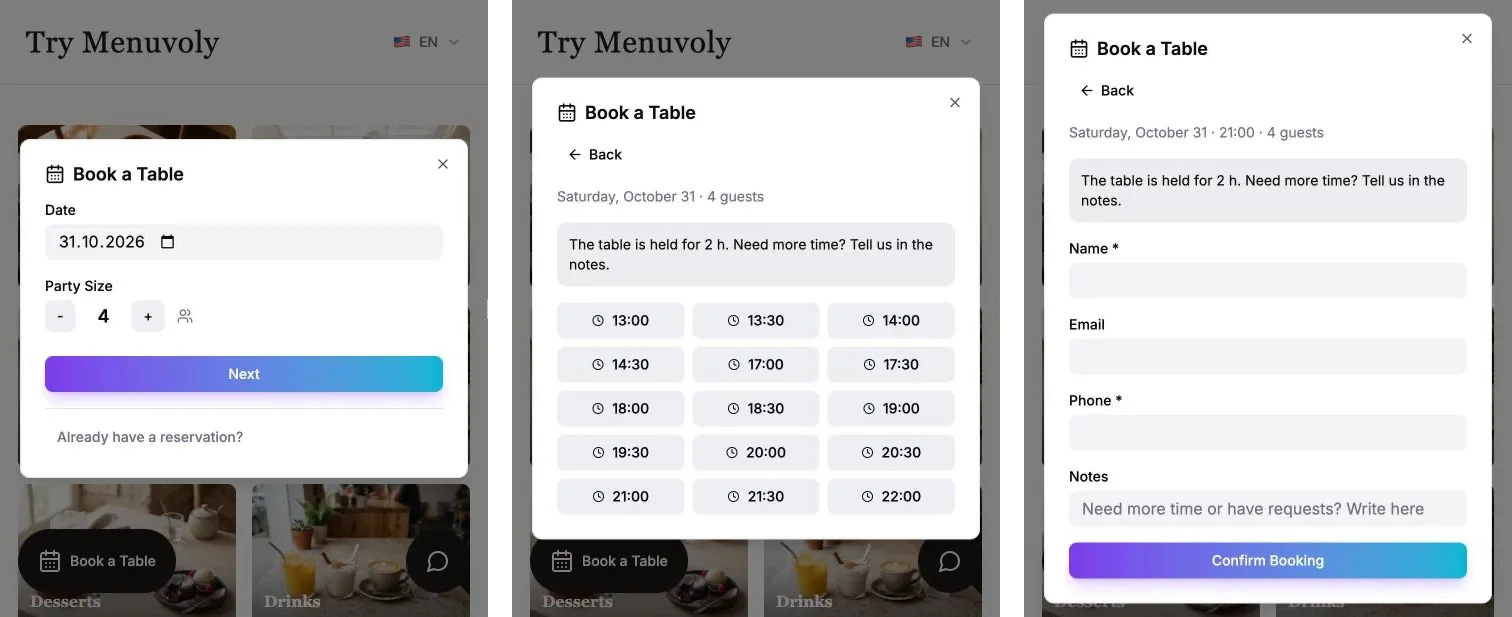
Guests press Book a Table on your menu, pick a date and party size, and see only the times when you are open — breaks such as an afternoon pause are taken into account. Before they choose a time they see how long the table is held and can ask for more time in the notes. That request appears in the reservation card as a guest comment.
Quick setup checklist
- Add your tables with their capacity in Bookings → Tables.
- Set opening hours, including breaks, in Restaurant → Hours (use Add hours for a second shift).
- Choose the maximum booking time and, if you like, shorter times for small parties.
- Check the Schedule before each shift and handle guest comments in advance.
FAQ
Why is a time missing from restaurant reservations? Menuvoly checks opening hours and looks for a table that fits the party for the reservation window. Compare the guest's date and party size with the hours and the tables already booked around that time.
Can small parties have a shorter seating time? Use Booking time by party size to set shorter times for selected party sizes. Check the duration shown on the public booking form so staff can set the same expectation when speaking with guests.
How should staff handle requests in a restaurant reservation system? Open the booking and read the Guest comment before service. Assign someone to check requests with the floor or kitchen team and confirm arrangements with the guest if a request needs a reply.
What should I check before moving a reservation? Open Move to table and check the new table's capacity and available time. Make sure the party fits for the time you have promised, then update the booking and tell the host where to seat the guests.
Ready to digitize your menu?
Join thousands of restaurants using Menuvoly to create beautiful digital menus.
Get Started Free